

Deploy PostgreSQL
Last updated: April 8, 2026
PostgreSQL is a powerful, open-source relational database. With the lowcloud Helm Release, you can deploy a fully managed PostgreSQL instance on your Kubernetes cluster.
Chart Registry: oci://registry-1.docker.io/cloudpirates/postgres
The Helm Release is provided and maintained by Cloud Pirates.
Prerequisites
- A lowcloud account with an active cluster
- Access to the lowcloud Dashboard
Quick Start
Minimal configuration to get PostgreSQL up and running:
auth:
  username: myuser
  password: my-secure-password
  database: mydb
Tip: Always use a strong password and change the default values before deploying. For production use, you should also configure persistence and resource limits — see the Extended Values section.
Configuration
Here are the most important configuration options:
| Parameter | Description | Default |
|---|---|---|
image.tag | PostgreSQL image version | 18.3 |
auth.username | Database username | — |
auth.password | Database password | — |
auth.database | Database name | — |
resources.requests.cpu | CPU request | 250m |
resources.requests.memory | Memory request | 256Mi |
resources.limits.cpu | CPU limit | 500m |
resources.limits.memory | Memory limit | 512Mi |
persistence.size | Persistent volume size | 10Gi |
Step-by-Step Guide
1. Add a Service
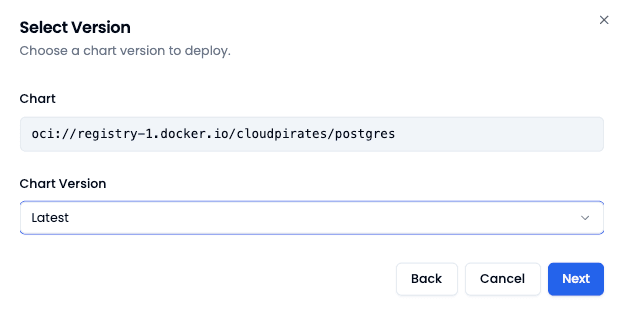
In the lowcloud Dashboard, navigate to Add Service and select Helm Release. Search for the PostgreSQL registry in the popup:
oci://registry-1.docker.io/cloudpirates/postgres
Then select the desired Helm Release version. The "latest" option is a good choice in most cases.
2. Configure Values
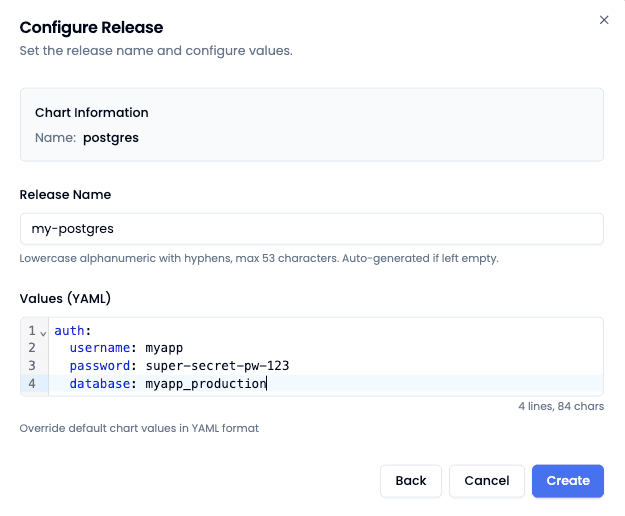
Give the Helm service a descriptive name in lowcloud (e.g. postgres-production).
Then adjust the values.yaml to match your requirements:
auth:
  username: myapp
  password: super-secret-pw-123
  database: myapp_production
Tip: For additional configuration options like resources and persistence, see the Extended Values section below.
3. Start the Deployment
Open the created service and click Deploy. Wait until the label in the Dashboard changes to "Deployed" — your PostgreSQL instance is then ready and can be used by your applications.
Extended Values
Extended configuration with CPU, memory limits, and persistent storage:
image:
  tag: "18.3"

auth:
  username: myapp
  password: super-secret-pw-123
  database: myapp_production

resources:
  requests:
    cpu: 250m
    memory: 256Mi
  limits:
    cpu: 500m
    memory: 512Mi

persistence:
  size: 10Gi